Post-quantum cryptography is here. SecureAge is prepared.

PhishAway · AI Phishing Detection for Outlook

Stop Phishing Before Anyone Clicks

PhishAway checks suspicious email inside Microsoft Outlook and gives employees an instant way to verify suspicious emails within Microsoft Outlook, so a single convincing phishing attempt doesn’t lead to credential theft or a malware infection.

Rather than relying only on lists of known senders and links, PhishAway’s AI has learned the warning signs of phishing from real examples, so it can spot new attacks as well as familiar ones.

Available for:
Exchange (On-premise and Online)

Why PhishAway?

Other defences step back right when the risk is highest.

When a convincing phishing email gets past the filter, an employee has to decide alone whether to click. PhishAway is built for that moment.

Protection at the point of decision

Most tools stop working once an email reaches the inbox. PhishAway works inside the inbox. It flags warning signs as soon as an email arrives in Outlook, so staff are warned before they open a link or attachment, not after. There’s no separate app and nothing new to learn.

Catches attacks no list has seen yet

Blocklists and sender rules only catch attacks that have been reported before. PhishAway’s AI learned the warning signs of phishing from real examples, so it can spot new and targeted attacks as well as familiar ones.

A clear answer instead of guesswork

Staff get a clear verdict on suspicious email. If they’re still unsure, they can send the email to an administrator for review, so nobody has to make that call alone.

Your email stays your email

PhishAway’s AI was never trained on customer email or attachments. Your organisation’s messages are never used to build or improve it.

How We Build and Test Our AI

PhishAway doesn’t rely on a fixed list of suspicious words. Here’s what it learned from, and how we check it works on email it hasn’t seen before.

  • Trained on real examples—PhishAway learned from a large collection of emails, web addresses and documents, each labelled as harmful or genuine.
  • Tested on email it had never seen—we test PhishAway on email kept out of training, so the results show how it handles new phishing rather than examples it already knows.

What PhishAway Checks

The checks behind every result, from links and QR codes to attachments, plus automatic handling of dangerous email.

Core Controls in PhishAway

Administrators manage PhishAway in SecureAge Central—settle doubtful email once,
tune how cautious it is, and follow activity across the organisation.

Review Once
One decision, every copy

An administrator rules on a reported email once.

Sender Rules
Trust or block senders

Keep lists of senders for your organisation.

Sensitivity
Choose how cautious

Set how strictly PhishAway checks email for phishing across your organisation (Low, Medium or High), balancing:

Visibility
Activity dashboard

Follow everything from one place in SecureAge Central.

How PhishAway Works

1
Step 1: A Suspicious Email Arrives

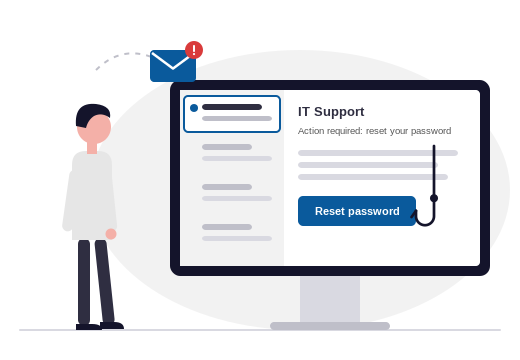
An email that appears to be from IT asks Ben to reset his password through a link.

Step 2: PhishAway Checks the Email

When Ben opens the email in Outlook, PhishAway checks it for warning signs, including whether the sender is trusted, every link and any QR code.

2
PhishAway checks the email's sender, links, QR codes and attachments on Ben's computerTrusted senderLinksQR codesAttachments
A warning banner and a red label tell Ben the email is dangerousWarning: this email looks like phishingDo not click links or open attachments.Phishing
3
Step 3: Ben Sees a Clear Result

PhishAway flags the email as Possibly Malicious, so Ben knows not to click.

Result

Ben leaves the link alone, and his password never reaches the attacker.

Choose Your Setup

PhishAway comes in two editions: the agentless Server Edition, which needs nothing installed on users’ computers, and the Endpoint Edition, which runs on each user’s computer. Both are managed centrally from SecureAge Central (on-premises). Compare them below to find the setup that fits your organisation.

FeatureServer EditionEndpoint Edition
Supported Outlook versionsWindows, Mac, iOS, Android, and the webClassic Outlook on Windows
Automatic email protectionOptional, via the PhishAway server No
Reports and administrator reviewsYesYes
Where email is checkedOn your PhishAway serverOn the user’s computer
Attachment scanningNoYes
Warning banner and inbox labels Yes Yes
Works when PhishAway server is out of reachNoYes

Use Case

A Singapore government agency gave PhishAway to a group of staff, including some who had fallen for earlier phishing tests. In a later organisation-wide phishing exercise, here’s how they compared with colleagues who didn’t have it.

Singapore Government Agency

Fewer clicks in an organisation-wide phishing exercise

Less than half
as likely to fall for phishing

Even though this group included staff who had been caught before.

With PhishAway
8%
Without PhishAway
18%

Frequently Asked Questions

What is PhishAway?

PhishAway is AI phishing detection for Microsoft Outlook. It checks links, QR codes and attachments for warning signs, and shows staff whether an email is safe.

The Endpoint Edition runs in classic Outlook on Windows. The Server Edition works with Outlook on Windows, Mac, iOS, Andriod and the web. See Choose Your Setup.

Yes. Both editions work with Outlook on Microsoft 365. With the Server Edition, PhishAway can also connect to Microsoft 365 directly and check email as it arrives, before anyone opens it.

It learned from real examples of phishing and genuine email, and we test it on email kept out of training. See How We Build and Test Our AI.

It depends on your setup. With the Endpoint Edition, email is checked on the user’s own computer and its text and attachments aren’t sent to a server. A record of each result (subject, sender, recipients and verdict) still goes to your PhishAway server. With the Server Edition, including automatic Microsoft 365 protection, the email and its attachments are sent to your PhishAway server to be checked. See Choose Your Setup.

For each email the Endpoint Edition checks, a record of its subject, sender, recipients, dates, delivery details and result, plus a fingerprint of the email text (not the text itself). Attachments aren’t stored, only how many were checked and their results. It also keeps the reports staff make and the emails administrators review. Email text is sent with a report only if an administrator turns that on.

No. It learned from public phishing collections, industry phishing reports, SecureAge’s own email and email donated by individuals—never from customer email or attachments.

Get Started with PhishAway

See how PhishAway works in practice: download the brochure, share it with your team, or request a trial to experience it firsthand.

Is PhishAway Right for You?

Ask us about a trial, licences or how PhishAway fits your organisation.

Download Brochure (PDF)

Download Our Brochures

Discover how to keep your data protected at all times. Download our brochure to see how SecureData delivers always-on encryption, simplifies compliance, and enable secure collaboration across your organisation.

Full Name *
Business Email *
Company Name *
Designation *
Specify Country or Region for required information
Product Brochure(s) Needed *
By clicking “Submit” below, you agree to the Privacy policy